
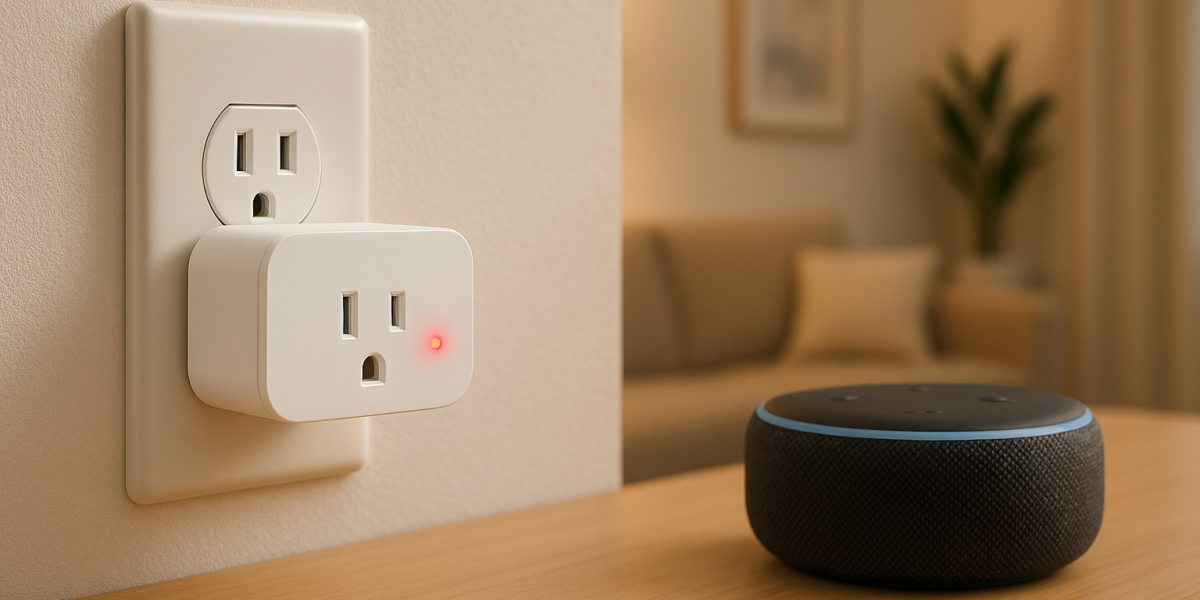
Smart Plug Not Working With Alexa — 7 Fixes That Actually Work
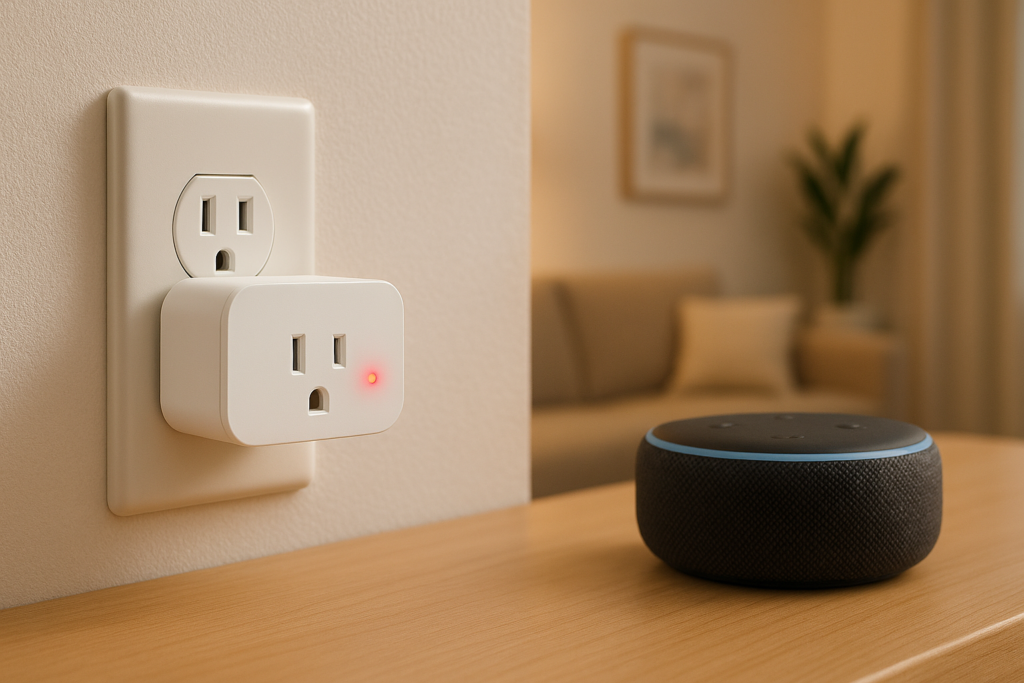
It was working fine yesterday. You didn’t change anything. And now Alexa just says “device is not responding” every single time.
Smart plugs are supposed to make life easier — not send you down a rabbit hole of rebooting, re-pairing, and Googling at 10 PM. But this specific problem, a plug that suddenly goes unresponsive to Alexa, has a handful of very fixable causes. Most people never find the right one because they try random things in the wrong order.
This guide walks you through exactly why your smart plug stops working with Alexa — and the seven fixes that actually resolve it, starting with the most common culprits.
Why This Is More Frustrating Than It Should Be
Here’s the thing nobody tells you upfront: smart plugs don’t communicate directly with Alexa. Every command you give — “Alexa, turn off the fan” — travels from your Echo device up to Amazon’s cloud servers, then to your plug manufacturer’s servers, then back down to the plug in your home. That’s four points of potential failure in a chain you can’t see.
When that chain breaks anywhere, Alexa says “not responding” and leaves you with zero clues about where it actually broke. So you end up trying everything at random instead of working through it logically.
That changes right now. Let’s go fix by fix.
What Most People Try First (And Why It Doesn’t Help)
The default move when a smart plug stops responding: ask Alexa to “discover devices” and hope for the best.
Sometimes that works. But usually it doesn’t — because device discovery only finds new or re-added devices. If your plug is still connected to your network but has lost its link to the Alexa skill, discovery won’t fix it. You need to go deeper.
The other common mistake is unplugging the smart plug and plugging it back in. That’s a power cycle, not a reset — and there’s a big difference. A power cycle just restarts the plug’s software. A proper factory reset wipes its connection data entirely and lets you start fresh. We’ll get to both.
Fix 1 — Check Your WiFi Band (This Is the #1 Cause)
Almost every smart plug on the market — Kasa, Amazon, Wemo, Govee — runs on the 2.4 GHz WiFi band only. They don’t support 5 GHz.
If your router broadcasts both bands under the same network name (which most modern routers do by default), your plug might be trying to connect to the 5 GHz signal and failing silently. It shows up as connected in the app but won’t respond to commands.
Here’s how to check and fix it:
Log into your router’s admin panel — usually by typing 192.168.1.1 or 192.168.0.1 into a browser. Look for wireless settings and see if your 2.4 GHz and 5 GHz networks share the same name. If they do, either rename the 2.4 GHz network to something distinct (like “HomeNet_2.4”) or temporarily disable the 5 GHz band while setting up your plug.
Once your plug is connected to the correct band, re-enable 5 GHz for your other devices. Your plug will stay locked to 2.4 GHz.
This single fix resolves the issue for a large chunk of people who contact smart plug support. Try it first.
Fix 2 — Disable and Re-Enable the Alexa Skill
This one gets overlooked because it sounds too simple. But the connection between Alexa and your plug’s manufacturer (Kasa, Wemo, Govee) runs through a linked skill — and that link can go stale after app updates, password changes, or server hiccups.
Rediscovering devices doesn’t fix this. You need to fully unlink and relink the skill.
Steps:
- Open the Alexa app on your phone
- Tap More → Skills & Games
- Tap Your Skills in the top right
- Find your plug’s skill (e.g., “Kasa” or “Wemo”)
- Tap Disable Skill
- Wait 30 seconds, then tap Enable to Use
- Sign back into your plug account when prompted
- Say “Alexa, discover devices” once done
Takes about two minutes and fixes the issue surprisingly often — especially after the plug manufacturer pushes an app update that resets the API connection.
Fix 3 — Restart Your Router (The Right Way)
Not all router restarts are equal. Pressing the power button and immediately turning it back on doesn’t clear the network’s memory properly.
Do this instead:
- Unplug your router from the wall
- Wait a full 60 seconds — not 10, not 30. Sixty.
- Plug it back in and wait for all lights to stabilize (usually 2 minutes)
- Then try the smart plug again
Why does waiting matter? Your router stores a table of connected devices and their assigned IP addresses. A quick restart sometimes pulls up a cached version of that table with stale entries. A full 60-second power drain forces it to rebuild the table clean — which often restores plug connectivity on its own.
Fix 4 — Rediscover Devices in the Alexa App
Once your router is back up and your skill is linked, give Alexa a fresh device scan.
Two ways to do this:
- Say “Alexa, discover devices” out loud
- Or go to: Alexa App → Devices → tap the + icon → Add Device → scroll to the bottom → Discover Devices
Give it 45 seconds to complete. If your plug reappears in the device list with a green indicator, you’re done. If it shows up grayed out, move to Fix 5.
Fix 5 — Factory Reset Your Smart Plug
This is the clean-slate fix. It wipes all saved WiFi credentials and Alexa connections from the plug, letting you pair it fresh as if it just came out of the box.
The process varies slightly by brand:
Kasa Smart Plug (EP25 and most models): Press and hold the button on the side of the plug for 5 seconds until the LED flashes amber and green alternately. Release, wait for it to flash rapidly, then set it up again through the Kasa app.
Amazon Smart Plug: Press and hold the button on the plug for 12 seconds until the orange light blinks, then release. The plug will restart and enter setup mode — you’ll see a steady orange light when it’s ready to pair.
Wemo Mini: Press and hold the reset button (small pinhole on the side — use a paperclip) for 5 seconds until the light flashes orange. The plug will restart and be ready to set up through the Wemo app.
After resetting, go through the initial setup in your plug’s app exactly as you did when it was brand new. Then re-enable the Alexa skill using the steps in Fix 2, and run device discovery again.
Fix 6 — Delete the Device From Alexa and Re-Add It
Sometimes Alexa holds onto a ghost version of your plug — an old device entry that conflicts with the newly reset plug trying to connect.
Here’s how to clear it:
- Open the Alexa app → Devices
- Find your plug → tap it → tap the Settings gear
- Scroll down and tap Trash icon → Delete
- Now re-enable your plug’s skill (Fix 2 steps)
- Run device discovery again
This removes the stale record completely and lets Alexa register your plug as a clean new device. It’s a small step that makes a real difference after a factory reset.
Fix 7 — Check for Outages With Your Plug’s App
If none of the above fixes work, the problem might not be in your home at all.
Smart plug manufacturers run cloud servers that handle the communication between Alexa and your device. When those servers go down — even briefly — your plugs go unresponsive through Alexa even though everything in your home is working perfectly.
Open your plug’s companion app (Kasa, Wemo, Govee Home) and try controlling the plug directly from there. If it works in the app but not through Alexa, it’s a cloud or skill issue — not your network. Check the manufacturer’s social media or a site like downdetector.com to see if others are reporting the same issue.
In that case, the fix is simply waiting. These outages usually resolve within an hour or two.
If You’re Done Fighting — Consider Upgrading
Here’s an honest take: if your smart plug drops Alexa connection repeatedly even after all these fixes, the plug itself may be the problem. Cheap or older plugs have firmware that stops receiving updates — and once the manufacturer moves on, connectivity gets progressively worse.
These two plugs have the most reliable Alexa track records in 2026 for US homeowners:
Kasa EP25 — Best Overall
The EP25 holds its Alexa connection better than almost anything at this price. TP-Link’s firmware team pushes regular updates, the Kasa skill is one of the most stable in the Alexa ecosystem, and the energy monitoring feature lets you see exactly what each device is drawing. Setup takes three minutes and it doesn’t randomly drop off your network.
Amazon Smart Plug Basic — Best for Alexa-Only Households
When you want zero friction with Alexa, Amazon’s own plug makes sense. It’s built to work with Alexa at a deeper level than third-party plugs — which means fewer skill conflicts, faster response times, and simpler troubleshooting when things do go wrong. Setup runs entirely through the Alexa app.
Comparison Table: Kasa EP25 vs Amazon Smart Plug Basic
| Feature | Kasa EP25 | Amazon Smart Plug Basic |
|---|---|---|
| Price | ~$14–$17 | ~$15–$20 |
| Works With | Alexa + Google Home | Alexa only |
| Energy Monitoring | Yes | No |
| Setup App | Kasa (TP-Link) | Alexa app |
| Alexa Reliability | Excellent | Excellent |
| Connection Type | 2.4 GHz WiFi | 2.4 GHz WiFi |
| Best For | Users who want more features | Pure Alexa households |
| Biggest Pro | Versatile, detailed energy data | Fastest Alexa setup available |
| Biggest Con | Requires separate Kasa app | Only works with Alexa |
Final Verdict — Work Through It in Order
Don’t skip around. Go through these fixes in sequence — most people find their fix somewhere between steps 1 and 4 without ever needing a factory reset.
Start with the WiFi band check. Then refresh the Alexa skill. Restart your router properly. Run device discovery. If those four don’t solve it, factory reset the plug and re-add it clean.
And if the problem keeps coming back after all that? The plug has reached the end of its reliable life. Both the Kasa EP25 and Amazon Smart Plug Basic are under $20, well-reviewed by thousands of US homeowners, and will give you a clean start without the headache.
FAQ — Smart Plug Not Working With Alexa
Q: Why does my smart plug work in the app but not with Alexa? This almost always means the Alexa skill has lost its connection to your plug’s account — not a WiFi problem. The fix is to disable and re-enable the skill in the Alexa app (Fix 2 above), sign back into your account, and run device discovery. The plug’s app communicates directly with the device over your local network, which is why it still works there even when the Alexa cloud link is broken.
Q: Why does my smart plug keep disconnecting from Alexa every few days? Repeated disconnections usually point to one of two things: your router is assigning a new IP address to the plug each time it reconnects (fix this by setting a static IP in your router’s DHCP settings), or the plug’s firmware is outdated and no longer maintaining a stable cloud connection. Check for firmware updates in your plug’s app. If updates are no longer available for your model, that’s a sign the manufacturer has stopped supporting it.
Q: Do I have to factory reset every time my smart plug loses Alexa connection? No — factory reset is a last resort, not a first step. In most cases, refreshing the Alexa skill (Fix 2) or restarting your router properly (Fix 3) is enough to restore the connection. Save the factory reset for situations where the plug has been unresponsive through multiple reconnection attempts.
Q: Can two smart plugs interfere with each other on the same network? Not directly — smart plugs don’t interfere with each other the way some other wireless devices do. However, if you have a large number of 2.4 GHz devices on your network, you can run into general congestion that affects all of them. If you have 20+ smart devices on one router, consider upgrading to a mesh WiFi system or a router with stronger 2.4 GHz performance.
Did one of these fixes solve it for you? Drop it in the comments — I read every one, and it helps other readers know where to start.